Once you have set up your profile using the First Time Log In Instructions, go to the Data Access Request Management System (DARM) by clicking on “Access DARM”.

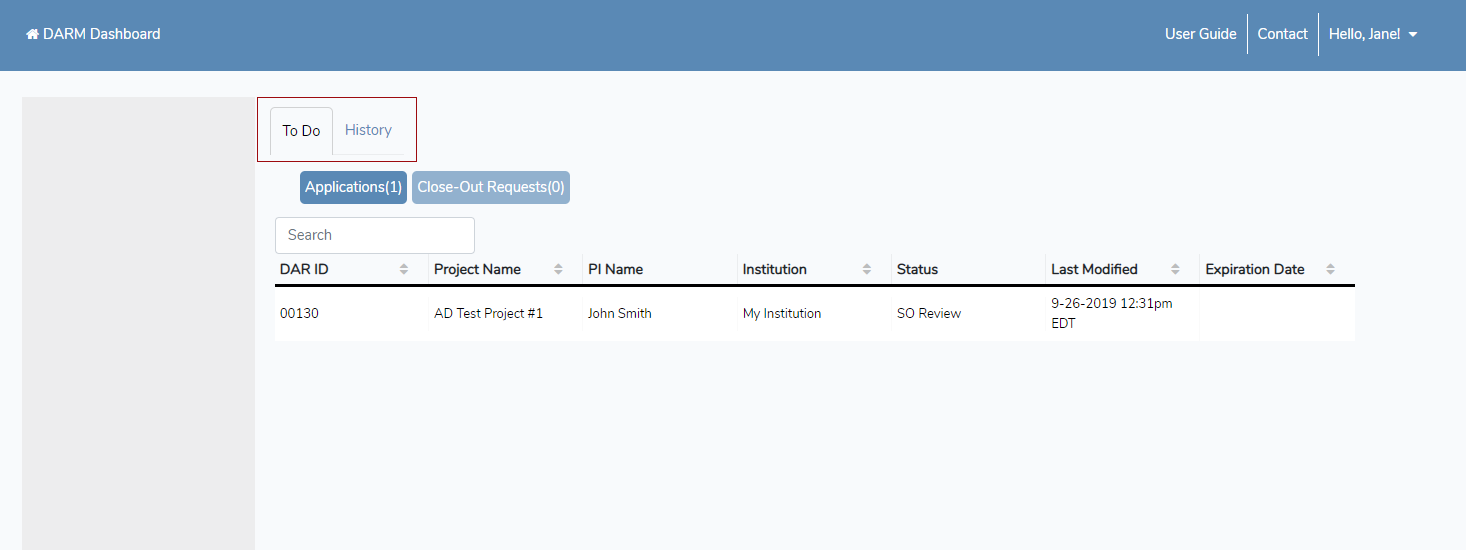
On the main DARM dashboard you will see two tabs: “To Do” and “History”. All of the applications queued for your review are located on the “To Do” tab, while the applications you have previously certified are located in “History”.
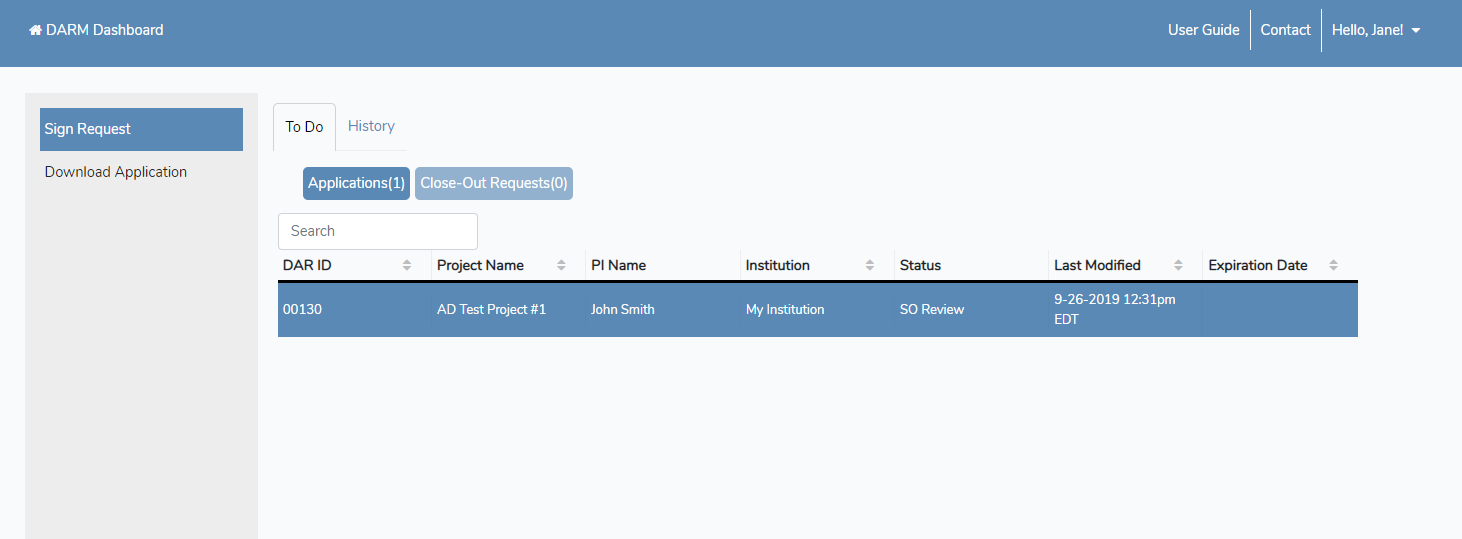
To review and certify the request, choose the appropriate project on the dashboard and then select “Sign Request” on the left toolbar. New applications and renewals are located on the “Applications” tab, while applications that are being closed by the PI are located on the “Close-Out Requests”.
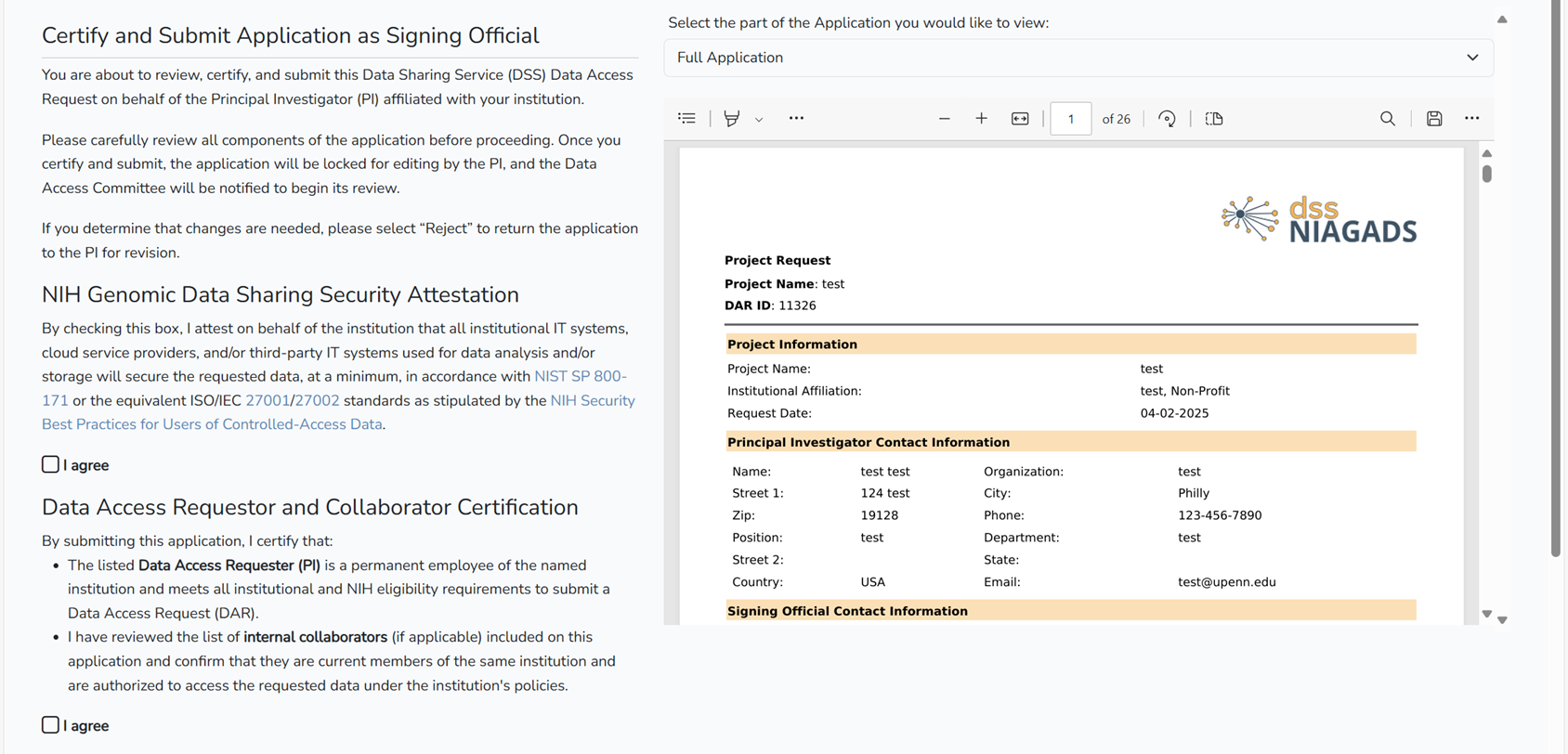
As Signing Official, you need to review all sections of the Data Access Request and verify the accuracy and completeness of the information provided. By submitting the request, you are attesting on behalf of the institution that all listed Data Access Requesters are affiliated with their stated institution or corporation, meet the minimum criteria to qualify as Data Access Requesters, and that the data will be secured, at a minimum, in accordance with NIST SP 800-171 or the equivalent ISO/IEC 27001/27002 standards, as stipulated by the NIH Security Best Practices for Users of Controlled-Access Data.
You can then approve or reject the Data Access Request by clicking either “Certify” or “Reject”. Please note that if you reject the application, you are responsible for communicating any changes that need to be made with the Principal Investigator in order for them to re-submit their DAR for your review.
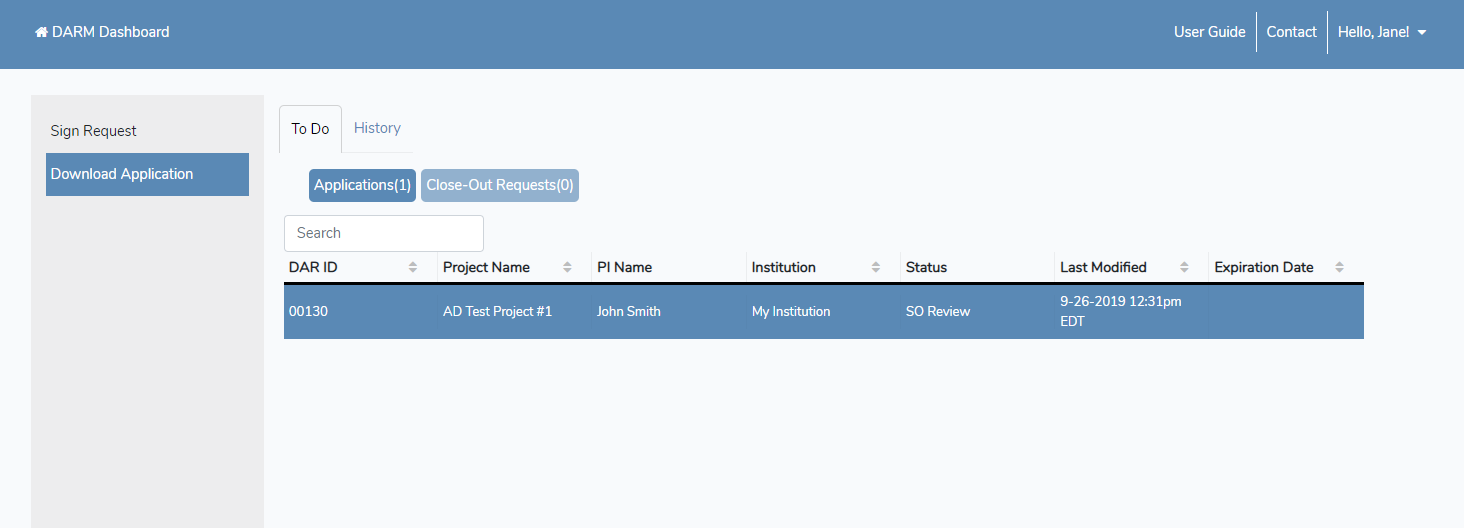
You can also download the application by clicking “Download Application” when it is highlighted on the dashboard.